Applications often need to use sensitive information such as API keys, authentication tokens, passwords, etc. This information needs to be available to all team members and it should be stored securely, without being exposed in the codebase. Git-secret is a tool that allows you to store and manage secrets in your Git repository and this is all you need to know.

When using Git-secret, the secret values are encrypted in binary files and committed to the repository. Those files can then be decrypted by authorized users in their workspaces, generating plain files that contain the original values at the moment of encryption. Such plain files need to be excluded from the repository, of course, as the secrets would become exposed to anyone with access to the repository otherwise.
Workspace Setup
To use Git-secret we only need to install it. Checkout the installation steps on the official website (in MacOS, it is available via brew; brew install git-secret). Git-secret uses gpg to encrypt the secrets, so we will also need to generate a gpg key for our user if we do not have one already. To generate a gpg key run the following command and provide the generated data (you can go with the default values).
gpg (GnuPG) 2.4.7; Copyright (C) 2024 g10 Code GmbH
This is free software: you are free to change and redistribute it.
There is NO WARRANTY, to the extent permitted by law.
Please select what kind of key you want:
(1) RSA and RSA
(2) DSA and Elgamal
(3) DSA (sign only)
(4) RSA (sign only)
(9) ECC (sign and encrypt) *default*
(10) ECC (sign only)
(14) Existing key from card
Your selection? 1
RSA keys may be between 1024 and 4096 bits long.
What keysize do you want? (3072)
Requested keysize is 3072 bits
Please specify how long the key should be valid.
0 = key does not expire
<n> = key expires in n days
<n>w = key expires in n weeks
<n>m = key expires in n months
<n>y = key expires in n years
Key is valid for? (0)
Key does not expire at all
Is this correct? (y/N) y
GnuPG needs to construct a user ID to identify your key.
Real name: John Doe
Email address: you@domain.com
Comment:
You selected this USER-ID:
"John Doe <you@domain.com>"
Change (N)ame, (C)omment, (E)mail or (O)kay/(Q)uit? O
gpg: directory '~/.gnupg/openpgp-revocs.d' created
gpg: revocation certificate stored as '~/.gnupg/openpgp-revocs.d/4116DE187877609C0F970F8235933C63304A6266.rev'
public and secret key created and signed.
pub rsa3072 2026-02-23 [SC]
4116DE187877609C0F970F8235933C63304A6266
uid John Doe <you@domain.com>
sub rsa3072 2026-02-23 [E]
Repository setup
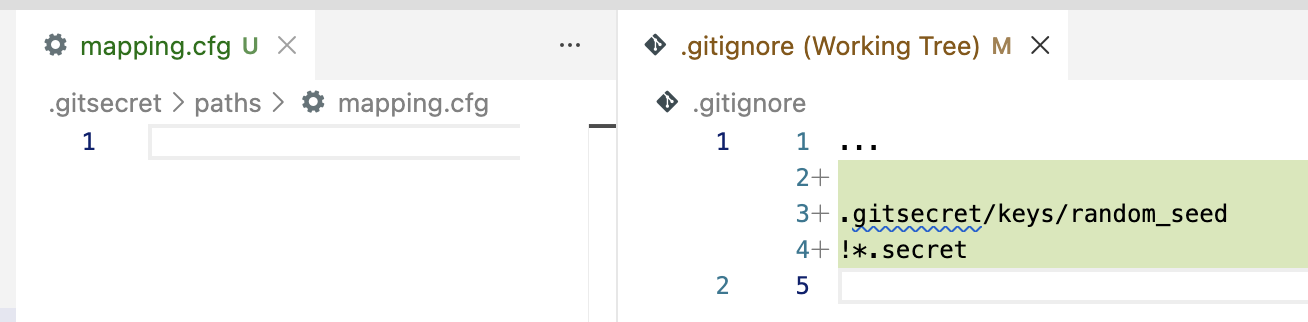
Once git-secret is installed you initialize the secrets in your repository by running git secret init. This command generates an empty mapping.cfg file under .gitsecret/paths, and adds an exclusion pattern for secrets to the .gitignore file.
git-secret: init created: '.gitsecret/'
Next you need to add yourself to the list of authorized users for the repository. You do so by running git secret tell you@domain.com. Note the email address must match the one in your gpg key. The command will generate a pubring.kbx file, along with a couple others. This file is used by GnuPG to store public keys, along with meta-information and indices (see this link for more details).
gpg: keybox '.gitsecret/keys/pubring.kbx' created
gpg: .gitsecret/keys/trustdb.gpg: trustdb created
git-secret: done. you@domain.com added as user(s) who know the secret.
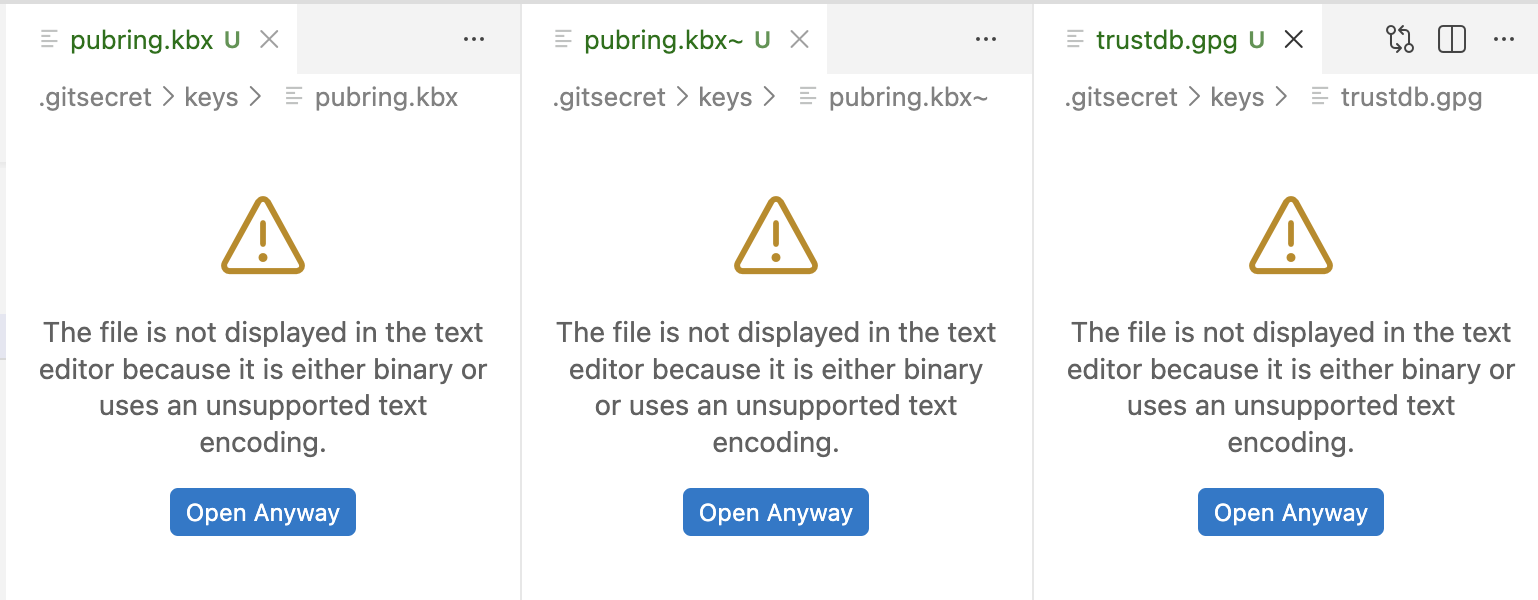
According to the official docs: "Generally speaking, all the files in this directory except random_seed should be checked into your repo". You can therefore go ahead and commit the generated files to the repository. We are now ready to start adding secrets and users to the repository.
Managing secrets
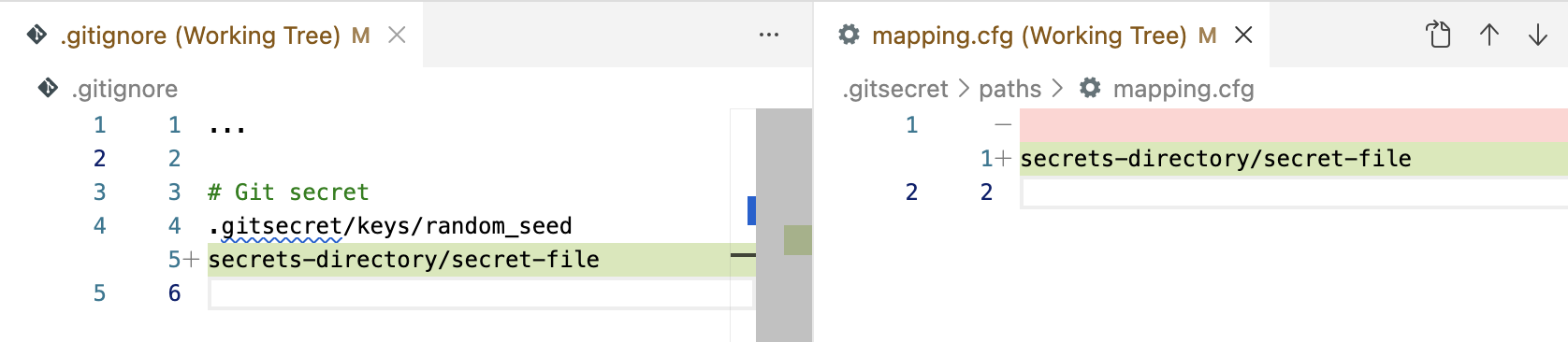
Adding a secret. To add a secret to the repository we will create a plain file, paste the secret value in it and run git secret add path/file. The add command instructs git-secret to track the plain file by adding it to mapping.cfg. From now on it will be considered when hiding/revealing secrets. Note that, at this point, no secret file has been generated yet.
% echo "secret-value" > secrets-directory/secret-file
% git secret add secrets-directory/secret-file
git-secret: file not in .gitignore, adding: secrets-directory/secret-file
git-secret: 1 item(s) added.
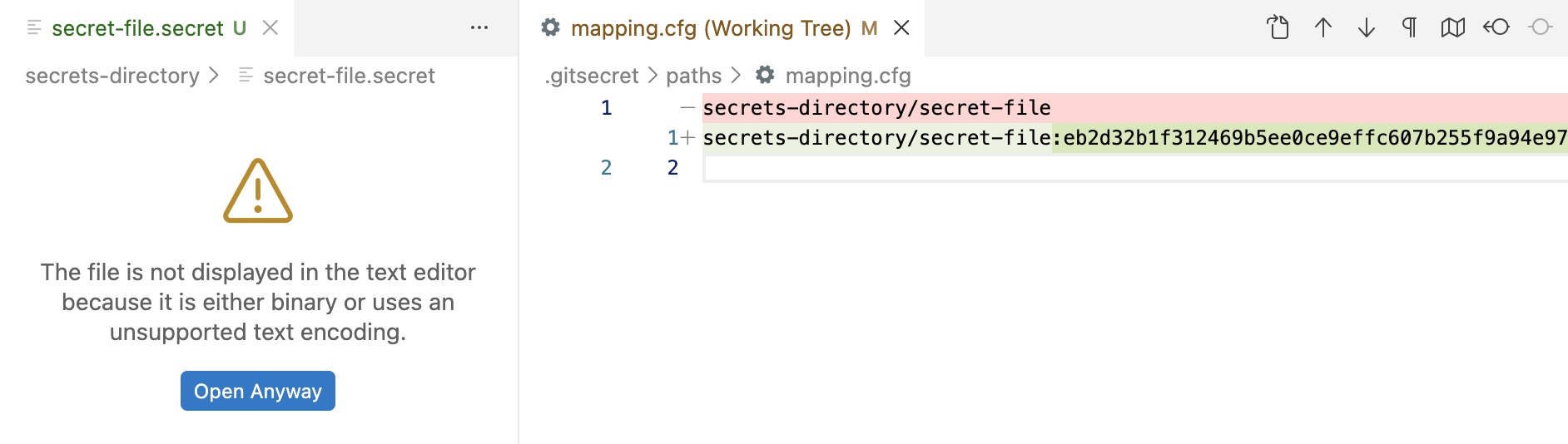
Once the plain file is being tracked we can generate the corresponding secret file by running git secret hide. This will generate a binary secret file, encrypted with the gpg keys of the authorized users, and add a hash for the secret to the mapping.cfg file. We will commit all changes to the repository.
- By default, ALL the secret files are regenerated every time you run hide. As explained in the official docs, this is done on purpose because the set of authorized gpg keys might have changed since the last time the files were encrypted. If you know what you are doing and wish to skip any secret files that have not be been modified since the last time they were encrypted, use the -m argument.
- The hash of the secret in mapping.cfgwill only change if the secret value changes.
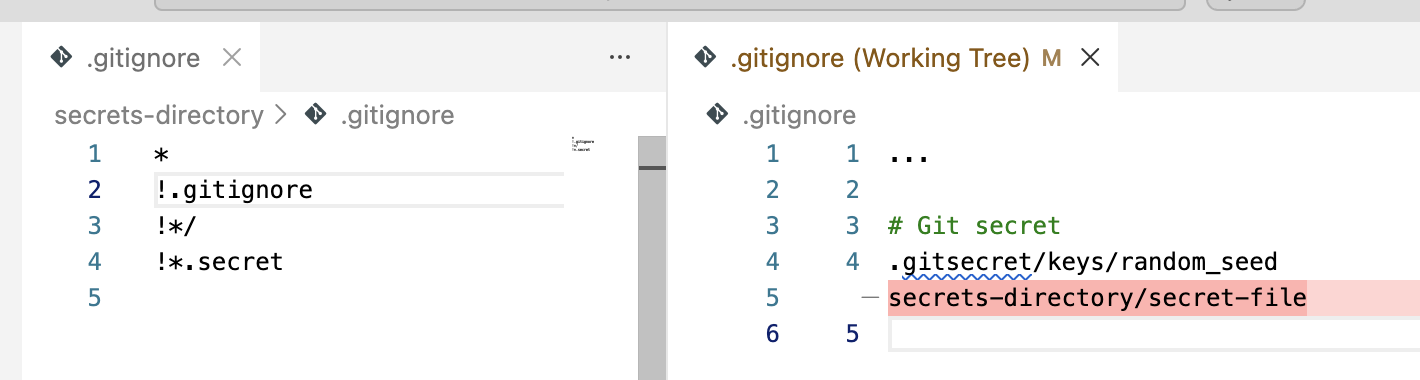
The add command detects the plain file is not excluded from the repository and it adds an exclusion pattern to the .gitignore folder. You can either go with this approach or tweak the .gitignore file to exclude all secrets with a single pattern (e.g. see the screenshot below).
Removing a secret. To remove a secret from the repository we will simply run git secret remove path/file. Note that, by default, this will only instruct git-secret to stop tracking the plain file. The secret file will remain in the file system however. Make sure to remove it manually (or instruct git-secret to remove the secret file by using the -c argument) and commit the changes to the repository.
git-secret: removed from index.
git-secret: ensure that files: [secrets-directory/secret-file] are now not ignored.
% rm secrets-directory/secret-file.secret
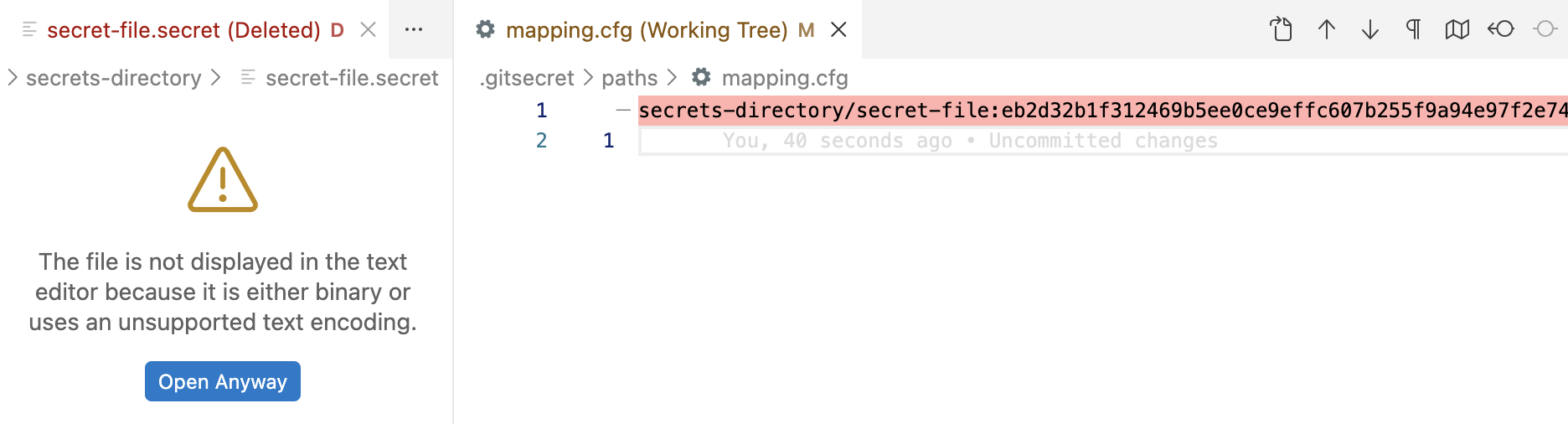
- Unlike add, which automatically add pathnames to .gitignore, remove does not delete pathnames from .gitignore. Make sure to remove the corresponding exclusion pattern yourself (or use a single exclusion pattern for all secrets as suggested above).
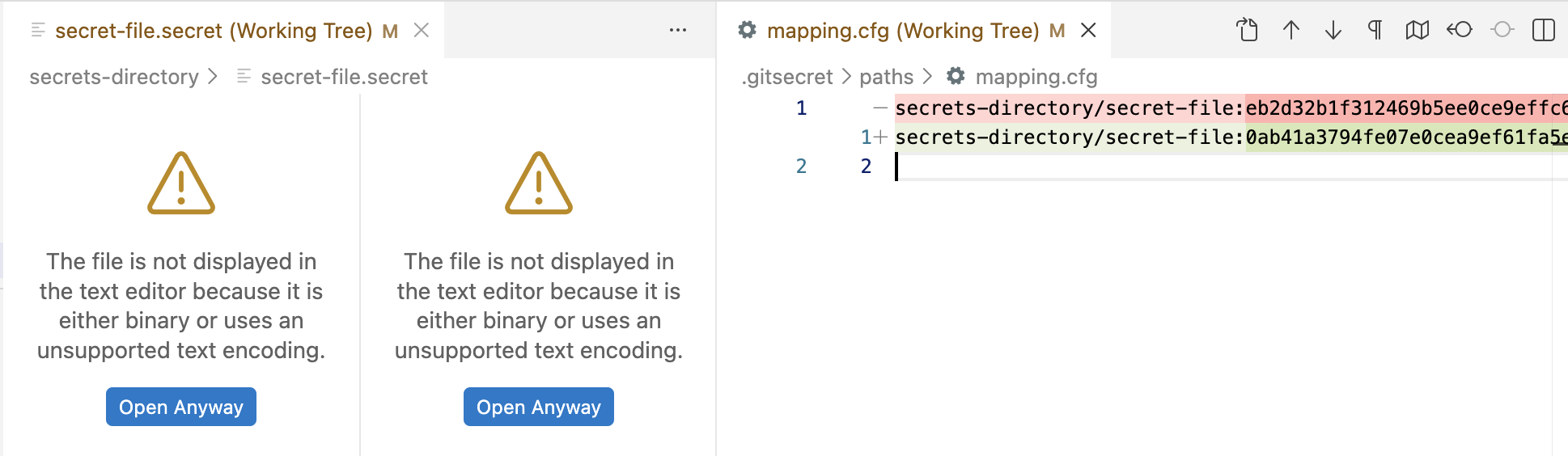
Updating a secret. To update a secret value (for example, when rotating an API key) we only need to update the corresponding plain file with the new value and re-encrypt it by running git secret hide again. This will generate a new secret file and update the hash in the mapping file. Commit all changes to the repository as per usual.
% git secret hide
git-secret: done. 1 of 1 files are hidden.
Managing users
Adding a user. To allow a user to manage the secrets in the repository we need to add them to the list of authorized users, just like we did before with our own user: git secret tell them@domain.com. This can only be done by users that have already been added to the repository and who have the gpg key of the user they want to add in their keyring.
Adding a user means registering their GPG key in the pubring.kbx file of the repository and, for that, we need to have their key in our keyring. If the key is not in our keyring, we will get an error when trying to add the user.
git-secret: abort: no key found in gpg user keyring for: them@domain.com
The user will therefore need to export their GPG key and share it with us. If they don't have a gpg key, they will have to create it in the same way we did earlier. They will export their key using the following command and the resulting file will look something like the one below.
mQGNBGmcwOEBDADnd2E4V7EPV/6pdLFr/mxLyGvn87viRHpkSYCusfJRBlaHNiIs
ulpM1eSe9ygwxMMRM1Vqfvv3hb/NBU2FLP3lQxnXMTuCZWCcRBeyKNhvs2wtgsMa
...
+L0WGOhCSdeOBRFchrLoYpPao8+6MRo77ACmEEYBI45Dmn0pXUeYEvhYsPeDVY6q
mTFhPbl6S+g4v/0Gsg==
=ykVJ
-----END PGP PUBLIC KEY BLOCK-----
Once the user shares the exported key with us (the .pubkey file), we can import it to our keyring using the following command.
gpg: key 35933C63304A6266: public key "Jena Doe <them@domain.com>" imported
gpg: Total number processed: 1
gpg: imported: 1
Having the user's GPG key imported we can now add them to the list of authorized users in the repository. This will modify the pubring.kbx file and it will clear the hashes of all secrets in the mapping.cfg file. You can confirm the user was added correctly by listing the authorized users with git secret whoknows.
git-secret: done. them@domain.com added as user(s) who know the secret.
% git secret whoknows
them@domain.com
you@domain.com
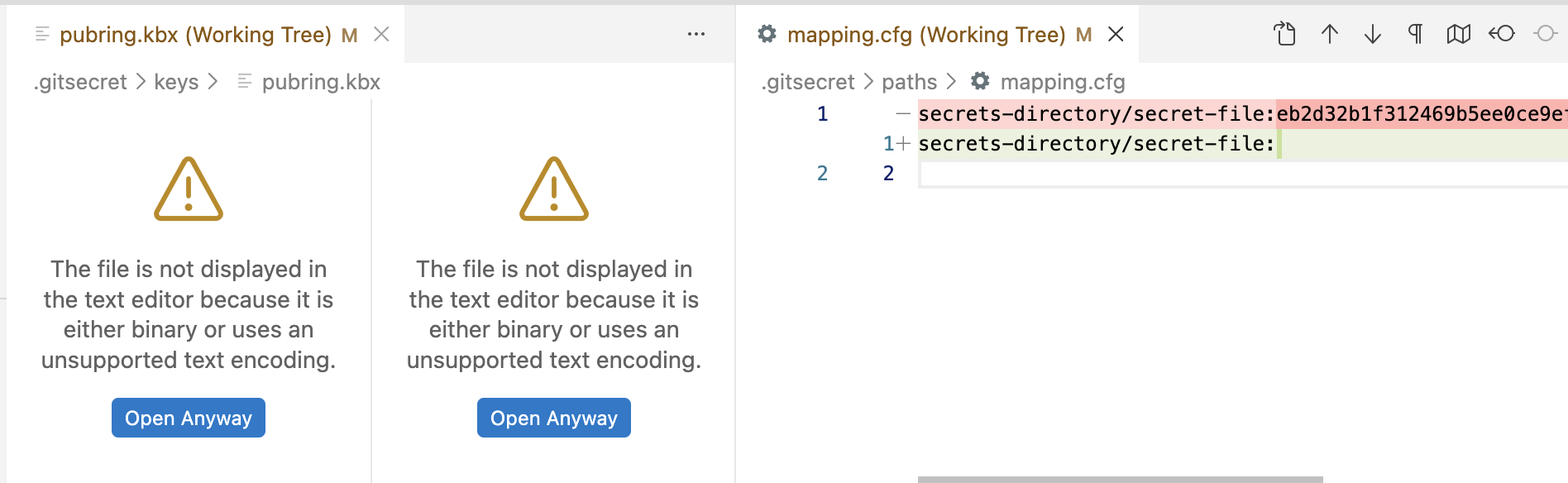
Note that the newly added user will not have access to the secrets that were encrypted before they were added to the repository. To give them access to the existing secrets, we must re-encrypt all secrets in the repository by running git secret hide again. As per usual, commit all changes to the repository afterwards.
Once users have been added, they can pull the latest changes from the repository and reveal the secrets by running git secret reveal.
Removing a user. To remove a user from the list of authorized users we will run git secret removeperson them@domain.com. This will modify the pubring.kbx file, removing the GPG key of the user. You can confirm the user has been removed correctly by listing the authorized users (i.e. git secret whoknows).
git-secret: removed keys.
git-secret: now [them@domain.com] do not have an access to the repository.
git-secret: make sure to hide the existing secrets again.
% git secret whoknows
you@domain.com
% git secret hide
git-secret: done. 1 of 1 files are hidden.
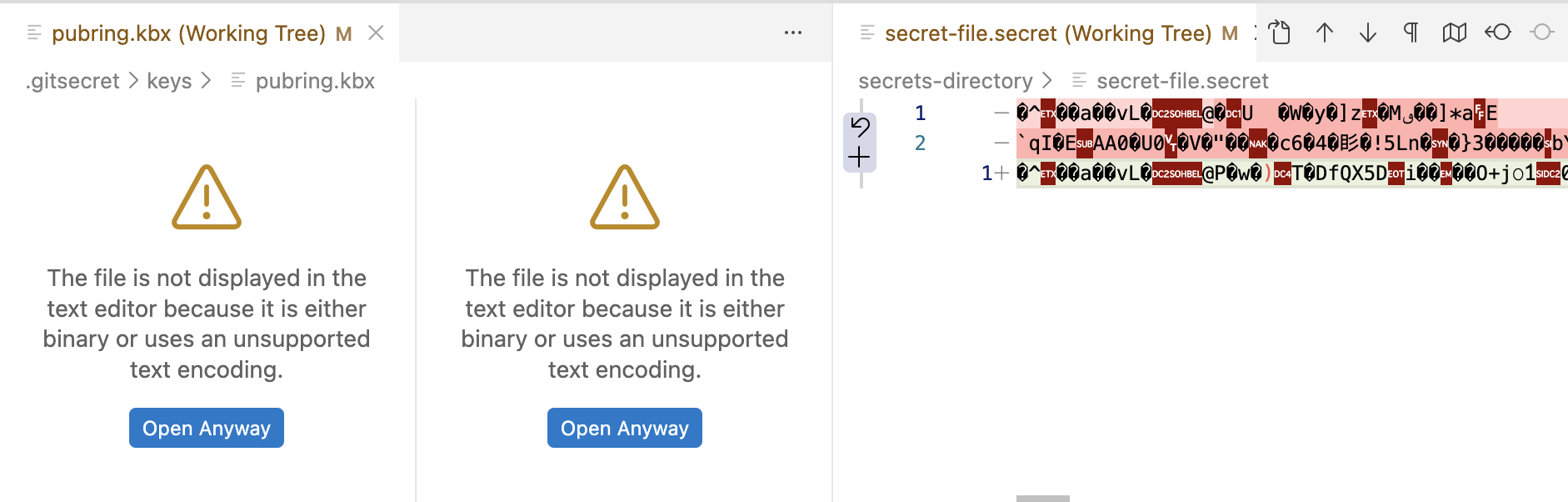
Note that, at this point, the encrypted files have not been modified. If the files had been encrypted while the user's key was still present, the user can still reveal the secrets with their GPG key. To fully remove their access, you must re-encrypt the files after having removed the user by running git secret hide again. It would be a good idea to rotate the secret values as well before re-encrypting the files.
Wrapping up
Secret values are a common requirement of modern web development and they need to be stored securely, somewhere where all the team members who need to can access them. If you and your team are already using Git for version control then git-secret is a great fit. It will help you manage secrets and authorized users effectively, introducing very little overhead, and it will save you from having to store secrets in a different platform or service.